Create Professional ID Photos: 3-Step Quick Guide
Create Professional ID Photos: 3-Step Quick Guide
Whether you need passport photos, visa photos, or other ID photos, GlowPic can help you create professional photos in 30 seconds.
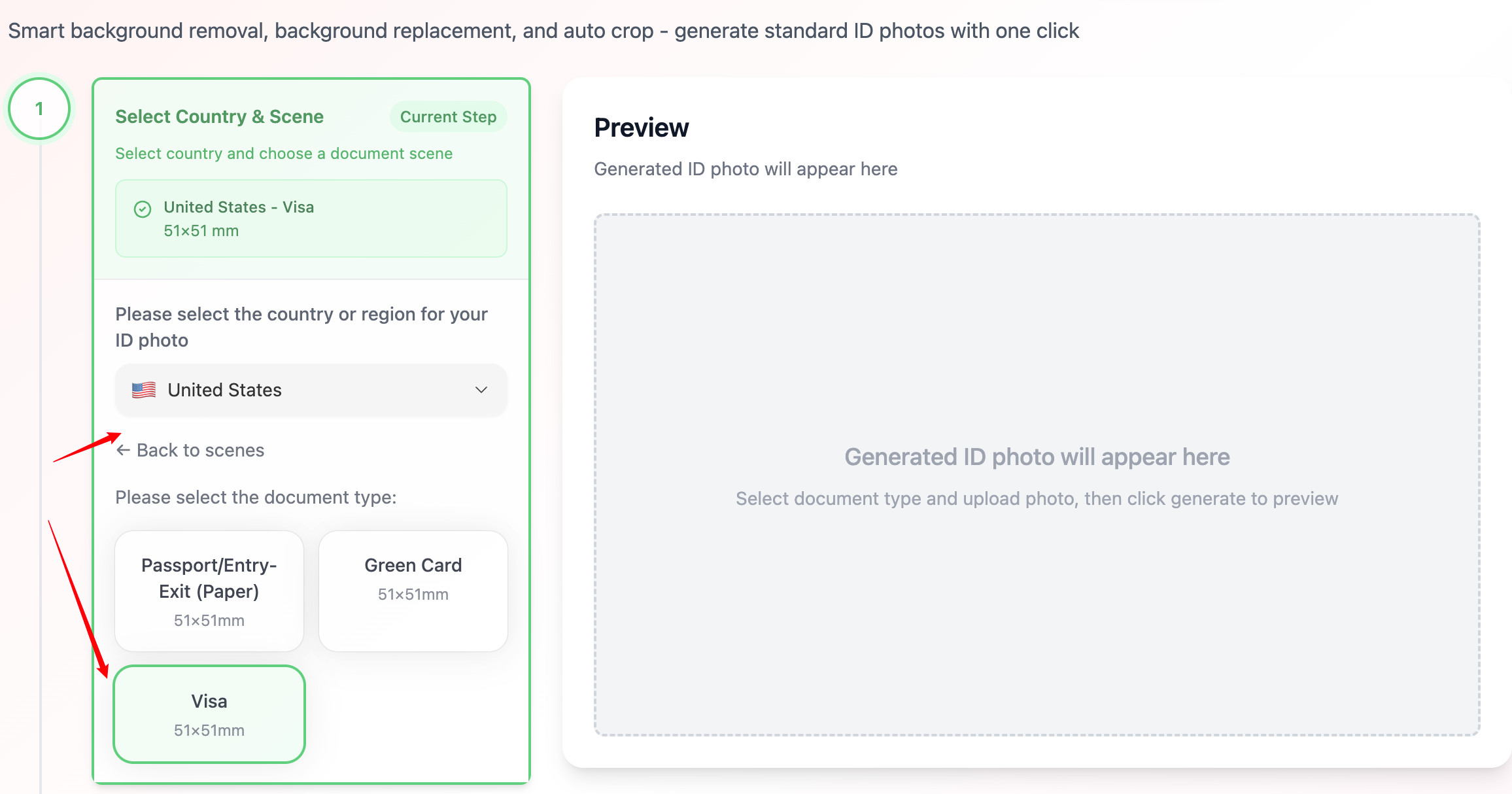
Step 1: Select Country and Purpose
First, select your country and the purpose of the ID photo. GlowPic supports ID photo standards for 50+ countries, including:
- 🇺🇸 United States
- 🇨🇳 China
- 🇬🇧 United Kingdom
- 🇪🇺 European Union
- And more...
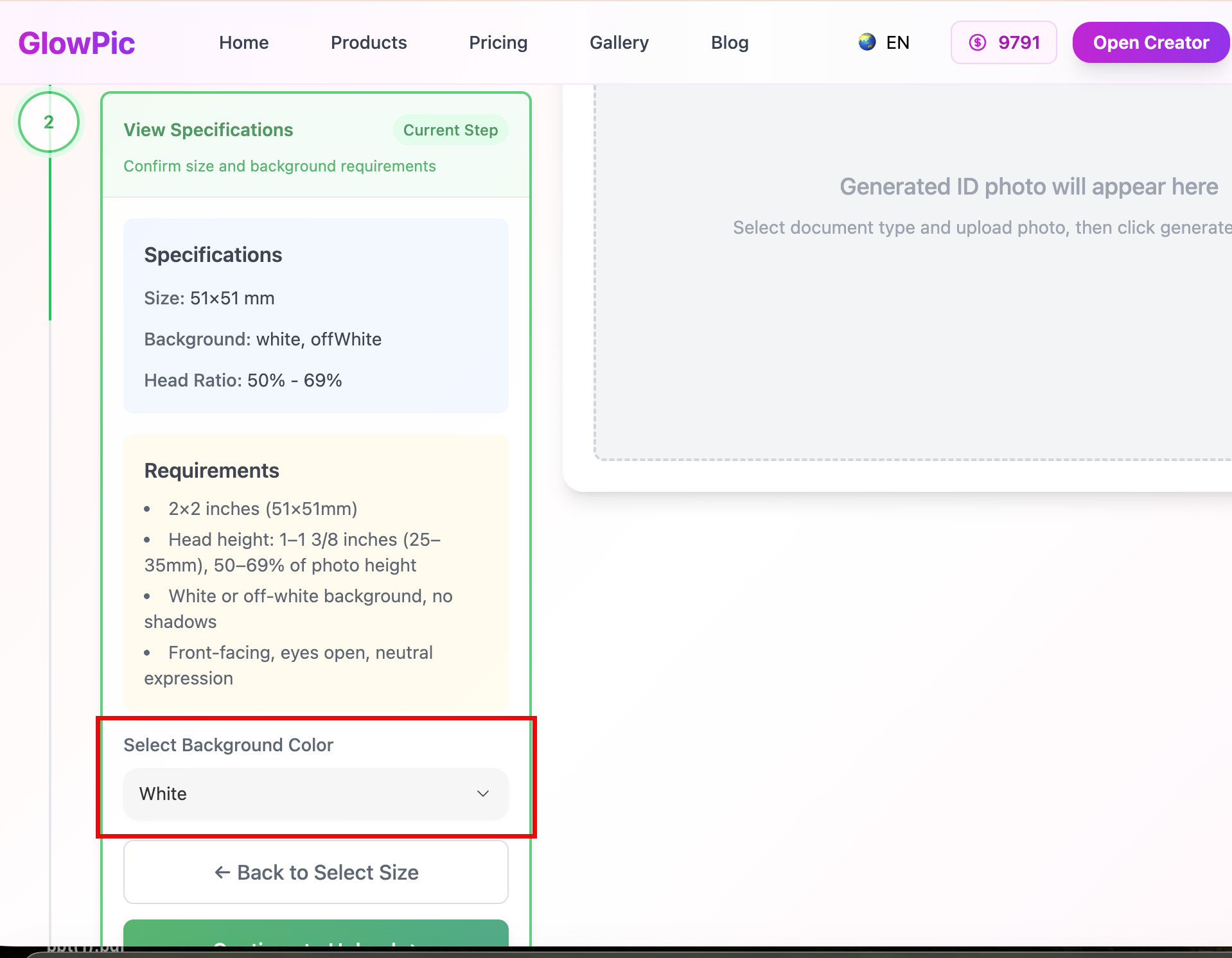
Step 2: Choose ID Photo Type and Size
According to your needs, select the corresponding ID photo type and size:
- Passport Photos
- Visa Photos
- Driver's License Photos
- ID Card Photos
- Standard Sizes: 1 inch, 2 inch, etc.
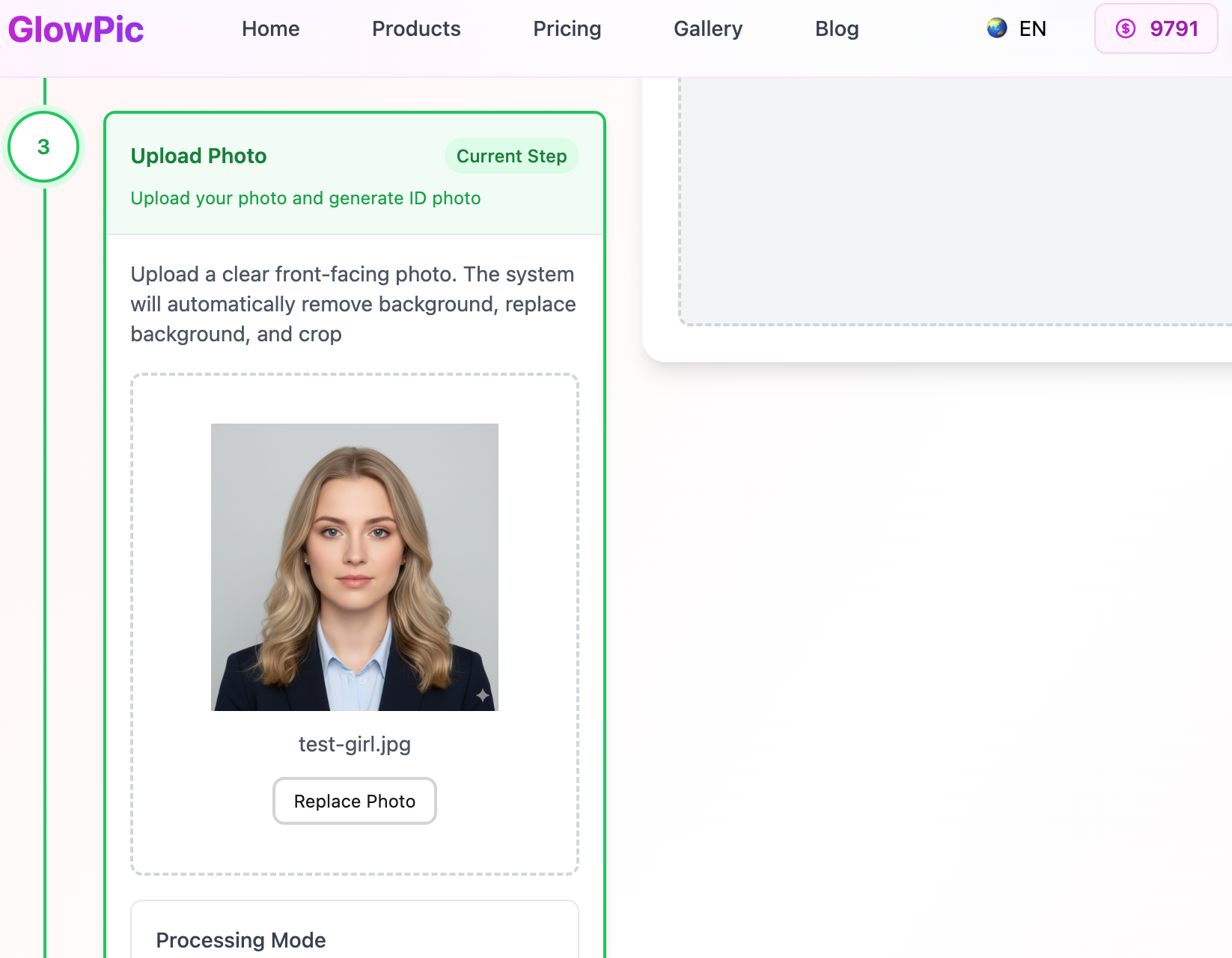
Step 3: Upload Photo and Customize Settings
After uploading your photo, you can precisely adjust the following parameters to ensure the photo fully meets requirements:
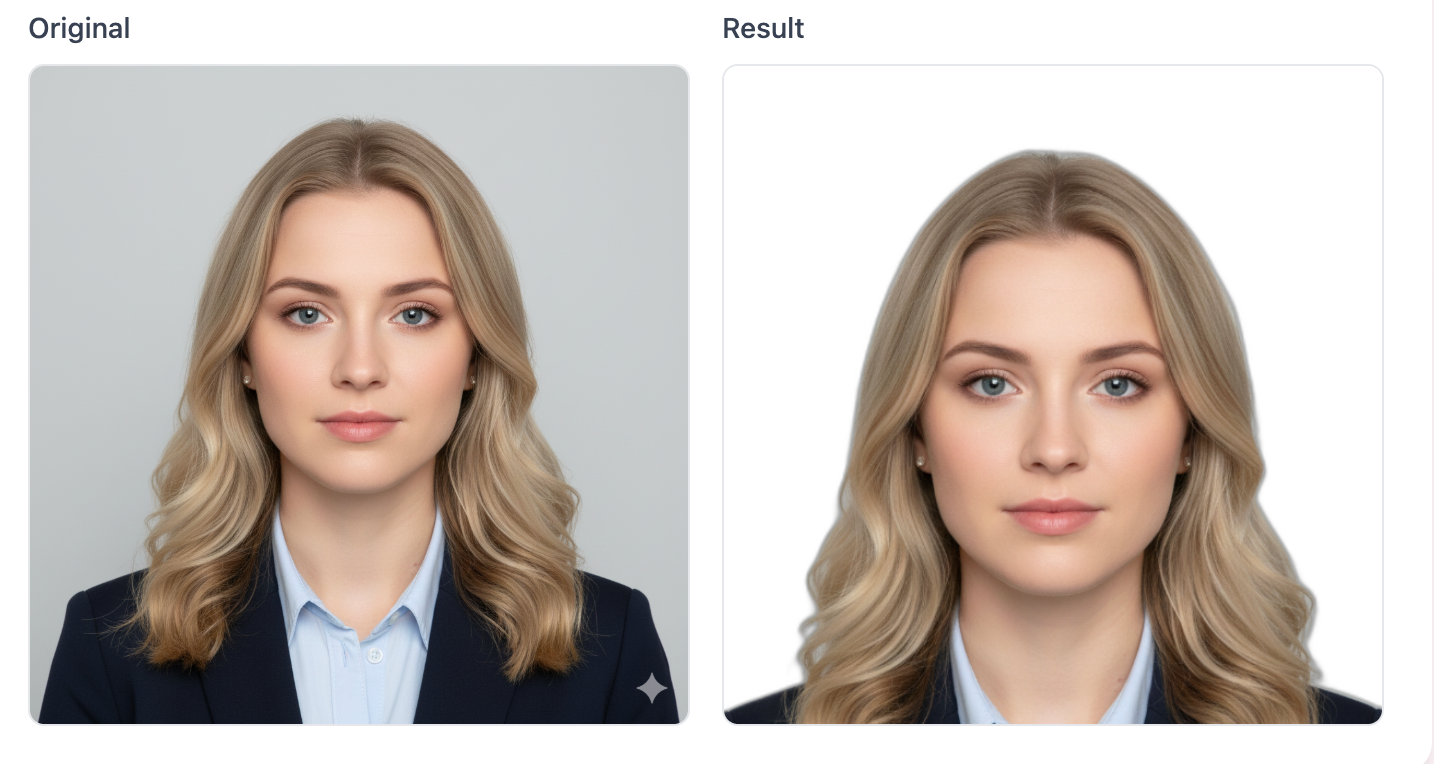
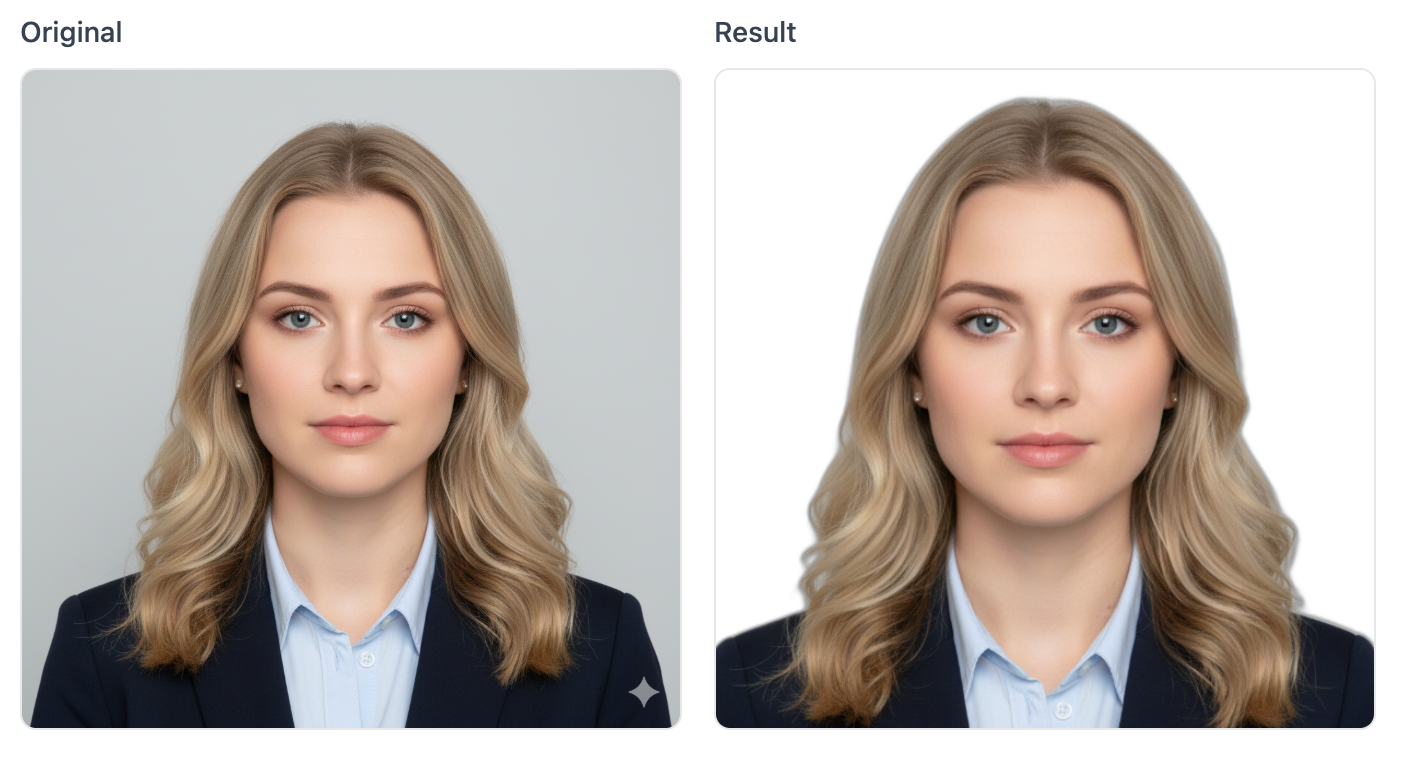
🎯 Head Height Ratio
Control the proportion of the head in the photo, range: 40%-70%, default: 50%
- 40%: Smaller head, suitable for ID photos requiring more body parts
- 50%: Standard ratio, suitable for most ID photo requirements
- 70%: Larger head, suitable for ID photos requiring prominent face
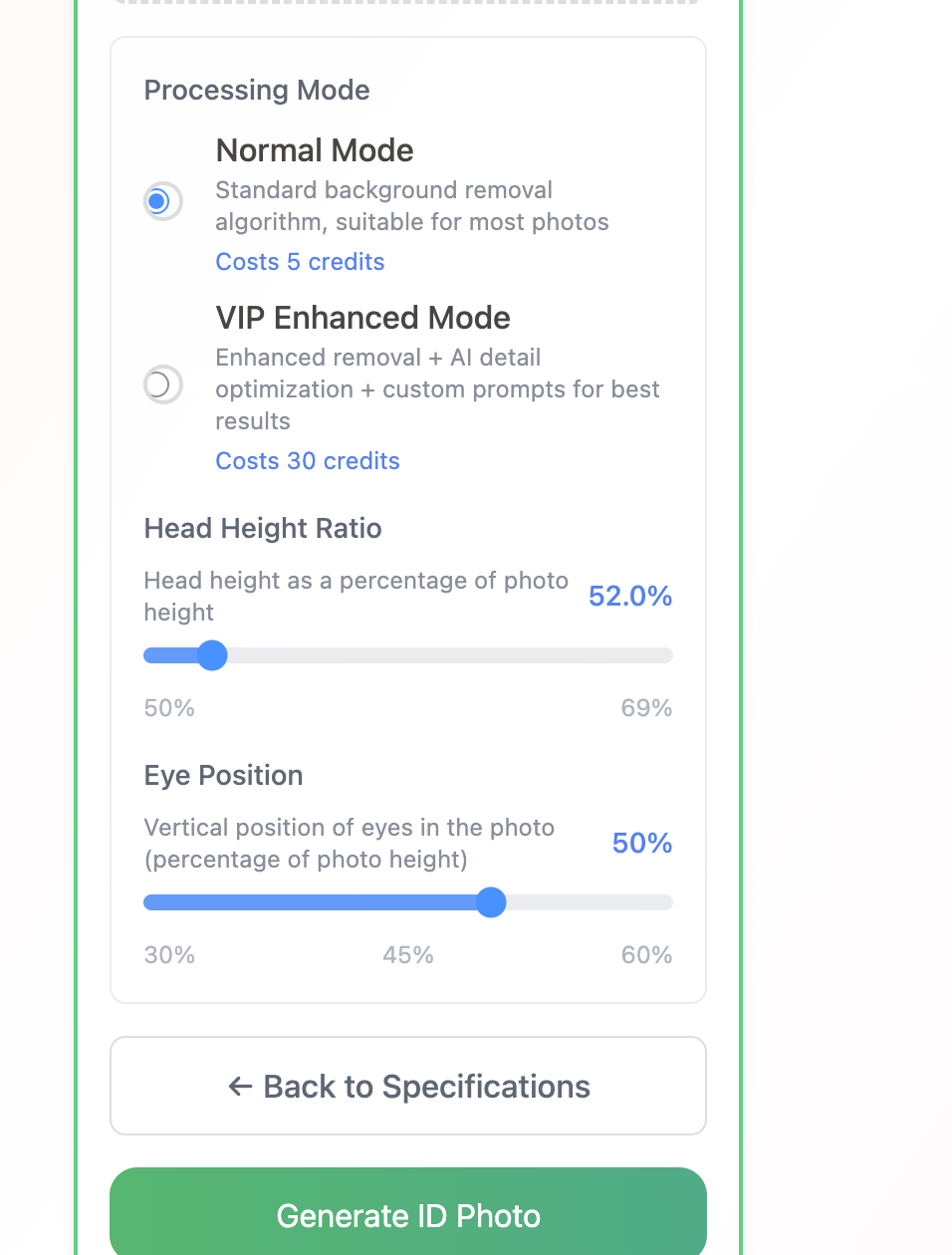
👁️ Eye Position
Calculate the eye position in the photo from bottom to top, range: 50%-70%, default: 60%
- 50%: Lower eye position
- 60%: Standard position (Recommended)
- 70%: Higher eye position
Effect Comparison
Example 1: Head ratio 52%, Eye position 50% (from bottom to top)
Example 2: Head ratio 50%, Eye position 60% (from bottom to top)
🚀 VIP Enhanced Mode
VIP Enhanced Mode provides more powerful AI processing capabilities for intelligent photo optimization:
✨ Key Features
-
Intelligent Background Removal
- More precise edge processing
-
AI Detail Enhancement
- Automatically improve photo quality
-
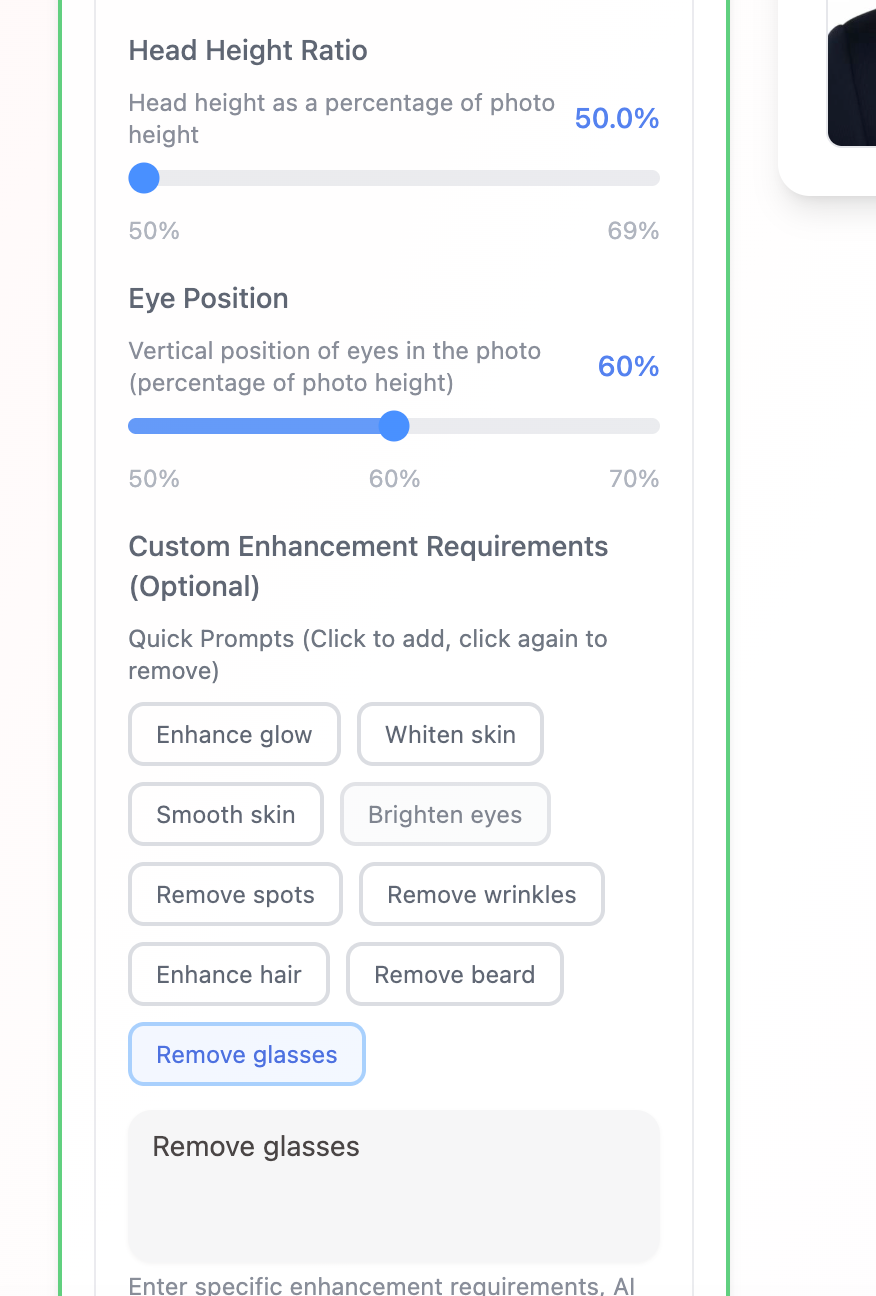
Custom Enhancement Requirements
- Whiten Skin
- Remove Wrinkles
- Enhance Glow
- Remove Beard
- Remove Glasses
- And more...
📸 AI Enhancement Example
Original Photo vs AI Enhanced (Beard Removed)
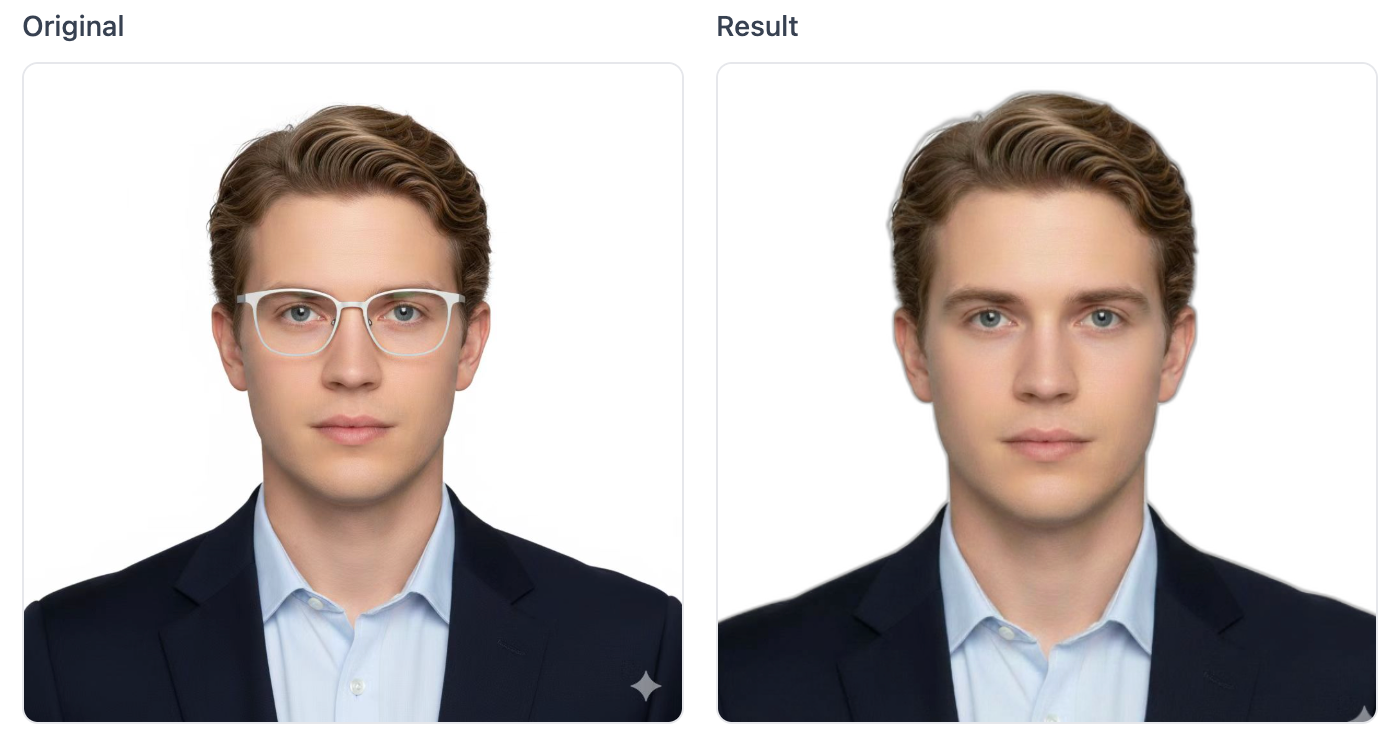
As shown above, VIP Enhanced Mode can intelligently remove unwanted elements (such as beards) while maintaining the naturalness and professionalism of the photo.
💡 Usage Tips
-
Choose the Right Photo
- Front-facing photo with natural expression
- Good lighting and high clarity
-
Adjust Parameters According to Purpose
- Different countries/regions may have different requirements
- Recommend referring to official requirements of the target country
-
Use VIP Mode for Detail Optimization
- Suitable for scenarios requiring blemish removal or detail adjustment
🎉 Get Started
Start creating your professional ID photos with GlowPic now!